
LeadsHook Integration
Complete guide to integrating LeadsHook with AnyTrack for accurate lead generation tracking, decision tree analytics, and conversion attribution across your marketing campaigns.
What is LeadsHook Integration?
Section titled “What is LeadsHook Integration?”LeadsHook is a powerful platform for creating decision trees and collecting leads through interactive questionnaires and forms. The AnyTrack integration connects your LeadsHook decision trees with full tracking and attribution capabilities.
Create interactive decision trees, qualifying questionnaires, and lead generation forms that guide visitors through personalized experiences.
Automatically track decision tree interactions, collect first-party data, and send conversion events to ad platforms and analytics tools.
Why Use LeadsHook with AnyTrack?
Section titled “Why Use LeadsHook with AnyTrack?”Integrating LeadsHook with AnyTrack transforms your decision trees into powerful data collection and attribution tools that improve your marketing performance.
Key Benefits:
- Accurate Lead Attribution - Track which campaigns and traffic sources generate the highest-quality leads through your decision trees
- Enhanced Ad Targeting - Send first-party data to Facebook, Google, and other ad platforms to improve audience targeting and lookalike audiences
- Complete Conversion Tracking - Monitor the entire customer journey from ad click through decision tree completion
- Automated Data Flow - Eliminate manual data entry by automatically sending events to your CRM and marketing tools
Technical details
Section titled “Technical details”| Supported features | LeadsHook |
|---|---|
| Plan Ad platforms need Starter or higher. | All plans |
| Required | |
| Tracking method Via Webhook | Server-side tracking |
| Setup method | Webhook URL |
| |
| Event attributes | |
| Conversion Mapping Rename or turn off events. | Yes |
| Combined Orders Groups upsells with the purchase. | No |
| Tracking Group Integration reference for AutoTag. | leadshook |
| Tracking parameter Carries the click_id. | atclid |
How the Integration Works
Section titled “How the Integration Works”Visitors to your LeadsHook decision trees generate tracking events automatically when you install the AnyTrack Tag and configure webhook triggers.
The Process:
- Visitor lands on your decision tree with the AnyTrack Tag installed (generates PageView)
- As they navigate through nodes and complete forms, LeadsHook sends the webhooks
- Conversion events (Lead, Purchase, etc.) are sent to AnyTrack’s LeadsHook integration
- Events are automatically sent to your connected ad platforms and analytics platforms
- First-party data trains advertising algorithms to find similar high-value prospects
By sending this data to the Conversion API, you train the algorithm on which campaigns are converting and who your audience is. Optionally, use Outbound Webhooks to send events to your CRM for lead management.
How to Set Up the Integration
Section titled “How to Set Up the Integration”How to Configure Advanced Conversion Events
Section titled “How to Configure Advanced Conversion Events”Learn how to trigger Purchase events from decision trees, map conversions to the Meta Pixel, prevent duplicates, and send events to Google Analytics 4 in this video.
How to Map and Configure Events
Section titled “How to Map and Configure Events”By default, the Lead event triggers when a visitor completes and exits a form node in LeadsHook where the webhook URL is set up. The LeadsHook integration also allows triggering FormSubmit, CompleteRegistration, AddPaymentInfo, and Purchase events.
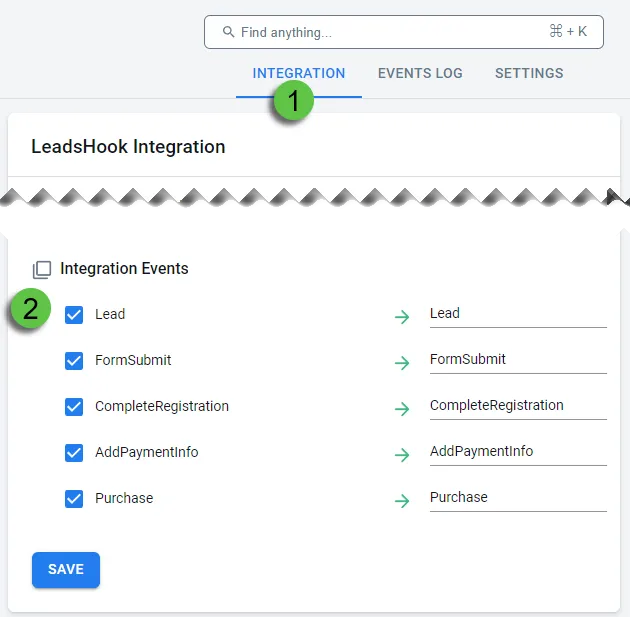
Event Name and Value
Customize Event Names and Values
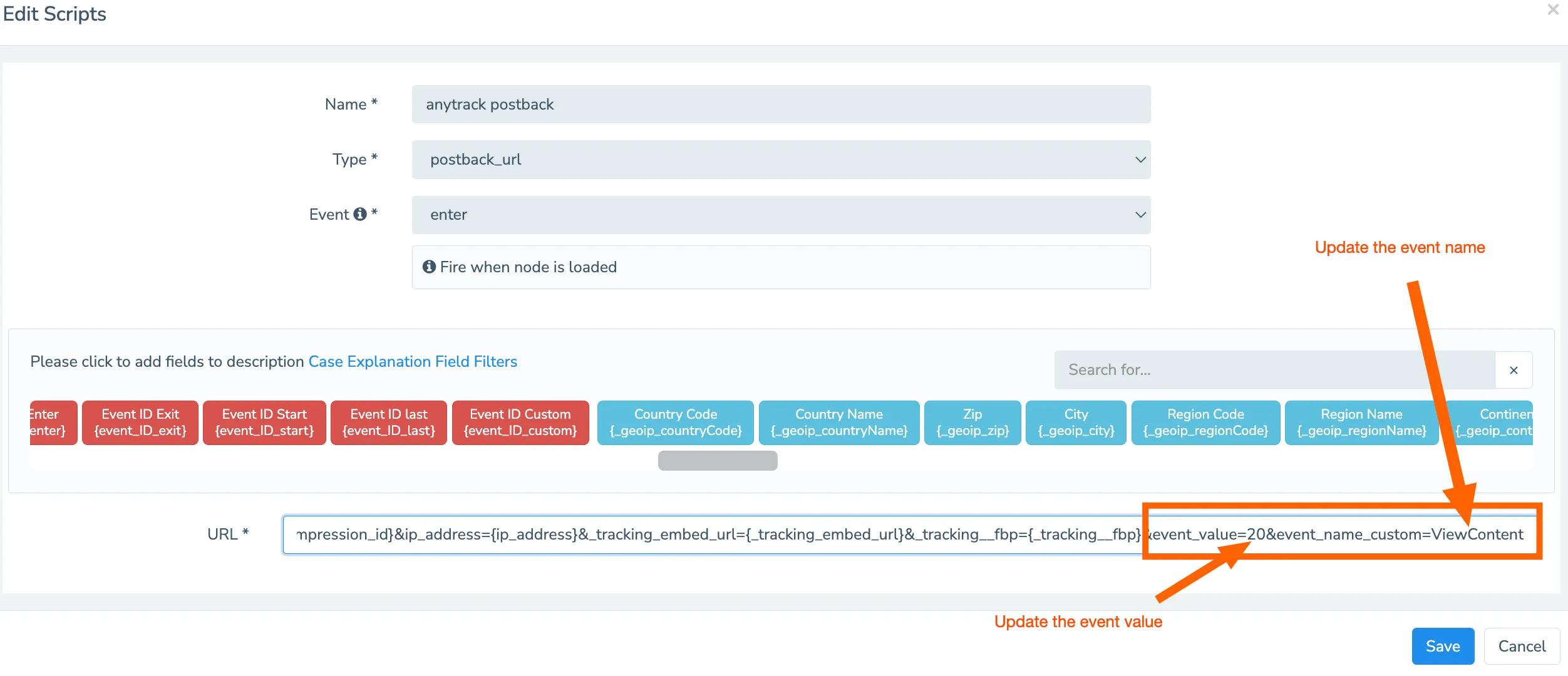
If you need to trigger different event names, modify the webhook event name parameter in your decision tree setup.
Example Scenario: Your decision tree includes a short form for email collection, followed by a longer form for complete registration. Trigger two different events:
- First event: Default
Leadconversion for email collection - Second event:
CompleteRegistrationfor full form completion
To configure:
- Replace
{event_name_custom}withCompleteRegistration - Replace
{event_value}with a monetary value (e.g.,20) to assign conversion value
Currency Settings
Configure Currency Codes
By default, AnyTrack uses the currency value from LeadsHook, which derives from the visitor’s IP address location.
To override currency:
- Replace
{_geoip_currencyCode}with your preferred currency code (e.g.,USD)
Important Steps:
- Edit the webhook URL in LeadsHook to include Standard Event names
- Update the Event Mapping in your AnyTrack ads integration to reflect changes
Related Resources
Section titled “Related Resources”Technical Implementation Details
FAQ was last reviewed on 2026-10-05
Webhook URL Example
https://t1.anytrack.io/xxxxxx/collect/leadshook?click_id={click_id}&lead_id={lead_id}&first_name={first_name}&last_name={last_name}&email={email}&score={score}&_c_dt={_c_dt}&_c_node_id={_c_node_id}&_c_identifier={_c_identifier}&_c_eventtime={_c_eventtime}&_c_eventid={_c_eventid}&_c_embedDomain={_c_embedDomain}&_c_embedPathName={_c_embedPathName}&_c_dt_ver={_c_dt_ver}&_device_userAgent={_device_userAgent}&_geoip_currencyCode={_geoip_currencyCode}&_geoip_regionCode={_geoip_regionCode}&_geoip_zip={_geoip_zip}&_geoip_countryCode={_geoip_countryCode}&_geoip_city={_geoip_city}&lead_token={lead_token}&impression_id={impression_id}&ip_address={ip_address}&_tracking_embed_url={_tracking_embed_url}&_tracking__fbp={_tracking__fbp}&event_value={event_value}&event_name_custom={event_name_custom}⚠️ Do Not Modify the Webhook URL. The webhook is predefined with all required parameters. Do not modify the parameters or tokens.
Received Payload Example
{
  "_c_eventtime": "1719923207",
  "event_name_custom": "{event_name_custom}",
  "_geoip_countryCode": "US",
  "_tracking_embed_url": "https://leadshook.carrd.co/",
  "click_id": "HwyEjB9nwerd5dPqqo7kOTN8VxtrhtoaHy",
  "email": "xo@anytrack.io",
  "lead_id": "514364659",
  "ip_address": "2.54.58.59",
  "event_value": "{event_value}"
}
What to Do Next
Section titled “What to Do Next”Include the AnyTrack Click ID in the lead data that LeadsHook sends to external platforms like LeadByte. Add the LeadByte integration to track subsequent conversions.
Use AnyTrack’s Outbound Webhooks feature to send events to your CRM or lead generation platform automatically.
For CRM Integration:
The Tracking Tag writes the Click ID into two LeadsHook fields. The click_id field contains the full value. The atclid field contains the Page Click ID: the first 30 characters of the same value. The AnyTrack webhook URL uses {click_id}. To pass the Click ID to a CRM, use {atclid}.
- Include the AnyTrack Click ID in the lead data that LeadsHook sends to external platforms.
- Example for LeadByte:
“c3”: "{atclid}"
- Example for LeadByte:
- Add the LeadByte integration to your AnyTrack account.
- LeadByte sends the
c3value back in its webhooks. AnyTrack uses this value to attribute the next conversions of the lead.
Sending to a different CRM? Map the same {atclid} value into the CRM. Only the name of the destination field changes:
| Destination CRM | Map the Click ID into |
|---|---|
| HubSpot | the AnyTrack Click ID property (parameter atclid) |
| GoHighLevel | the _atid custom field |
| LeadByte | c3 |
| Any custom CRM | a custom field you create |
For the full external-form → CRM pattern, see Pass the Click ID from External Forms to Your CRM.
Frequently Asked Questions
FAQ was last reviewed on 2026-10-05