
EverFlow Integration
Learn how to connect EverFlow affiliate management with AnyTrack for conversion tracking and reporting. Set up postback URLs and event mapping to track affiliate conversions and optimize your campaigns.
What is the EverFlow Integration?
Section titled “What is the EverFlow Integration?”The EverFlow integration connects your affiliate marketing campaigns with AnyTrack’s conversion tracking system. This integration automatically collects visitor data, tracks affiliate link clicks, and records conversions from EverFlow-powered affiliate networks.
EverFlow-Powered Networks Include:
- GiddyUp
- CashNetwork
- Olavivo
- And many other affiliate networks running on EverFlow platform
Why Use This Integration?
Section titled “Why Use This Integration?”Track Every Conversion Get complete visibility into your affiliate performance with real-time conversion data from EverFlow to AnyTrack.
Optimize Ad Campaigns Feed accurate conversion data to Google Ads, Facebook Ads, and TikTok Ads for automatic campaign optimization.
Maximize ROI Make data-driven decisions with detailed attribution reports showing which traffic sources generate the most valuable conversions.
How AnyTrack Works with EverFlow
Section titled “How AnyTrack Works with EverFlow”Step 1: Add the Tracking Tag to your site
AnyTrack collects traffic source data and first party data when someone lands on your website.
Step 2: Track Outbound Clicks
When visitors click your EverFlow affiliate links, AnyTrack passes click_id parameter to affiliate links.
Step 3: Receive conversions from EverFlow
When visitors convert on the merchant’s website, EverFlow sends conversion data back to AnyTrack in real-time.
Step 4: AnyTrack Sends Conversions to Ads
AnyTrack processes the conversion and sends it to your ad platforms (Google Ads, Facebook Ads, TikTok Ads) for campaign optimization.
Integration Details
Section titled “Integration Details”| Setting | Value | Purpose |
|---|---|---|
| Tracking Group | everflow | Activates automatic link tagging for EverFlow links |
| Subid Parameter | sub5 | Passes the unique click identifier to track conversions back to the original click |
| Method | Postback URL | Real-time data connection between EverFlow and AnyTrack |
Tracked Events
Section titled “Tracked Events”| Event | When It Triggers | Data Source |
|---|---|---|
| OutboundClick | Visitor clicks an EverFlow offer link | AnyTrack tracking tag |
| Purchase | The default conversion, which carries a commission value. Always recorded as Purchase | Postback URL |
| Additional conversions | Any other conversion event the network sends, under the name the merchant gave it. Map each one to a standard event yourself | Postback URL |
New to the tracking tag? Follow the Install the AnyTrack Tag guide first. Without it in your site’s head, EverFlow conversions arrive with no click to attribute them to.
Setup Instructions
Section titled “Setup Instructions”Step 1: Install the Integration
Section titled “Step 1: Install the Integration”- Go to your AnyTrack Integration Catalog
- Search for “EverFlow”
- Click the EverFlow card
- Click Install
Step 2: Configure Postback URL in EverFlow
Section titled “Step 2: Configure Postback URL in EverFlow”To connect your EverFlow account to AnyTrack:
- Copy the postback URL from your AnyTrack integration settings
- Log into your EverFlow affiliate dashboard
- Navigate to Postback Settings or Tracking section
- Configure the postback:
- Status: Active
- Type: Conversion
- Postback Level: Global
- Delivery Method: Postback
- Paste the postback URL in the URL field
- Click Add or Save
Example Postback URL:
https://t1.anytrack.io/hBtoE3hN/collect/everflow-test?sub1={sub1}&sub2={sub2}&sub3={sub3}&sub4={sub4}&sub5={sub5}&transaction_id={transaction_id}&event_name={event_name}&event_id={event_id}×tamp={timestamp}&datetime={datetime}&affiliate_id={affiliate_id}&affiliate_name={affiliate_name}&source_id={source_id}&offer_id={offer_id}&offer_name={offer_name}&offer_currency={offer_currency}&payout_amount={payout_amount}&amount={amount}&revenue_amount={revenue_amount}&advertiser_id={advertiser_id}&advertiser_name={advertiser_name}Step 3: Configure Event Mapping
Section titled “Step 3: Configure Event Mapping”EverFlow sends every conversion to AnyTrack by postback. How AnyTrack treats each one depends on whether it is the default conversion:
- The default conversion is the one that carries a commission value. It is always recorded as
Purchase. You don’t map it, and you can’t remap it to a different standard event. - Every other conversion event arrives under the name the merchant gave it. You map each one yourself in the integration’s conversion mapping.
- Go to your EverFlow integration settings in AnyTrack
- Click Event Mapping
- Map each additional conversion event to the standard event it should become
- Save your mappings
Map custom events from EverFlow
Section titled “Map custom events from EverFlow”Merchants on EverFlow can send customer journey events such as cart creation or checkout started to their affiliates by postback. They name these events themselves, so the names arrive as free text rather than as AnyTrack standard events. AnyTrack records whatever name it receives and lets you map it.
In EverFlow, for each event you want to track:
- Open your postback settings and add a new postback
- Select the specific event you want to send
- Paste the AnyTrack postback URL exactly as provided. Leave the
{event_name}placeholder in place so EverFlow fills it with its own event name - Save
In AnyTrack:
- Go to your EverFlow integration settings and click Event Mapping
- Each custom event appears in the list the first time AnyTrack receives it
- Select the standard event it should map to
- Save your mappings
What this looks like in practice. Custom events appear in the same list as the standard events, below them, each marked with a lightning bolt and each with its own field on the right. Standard events carry no marker.
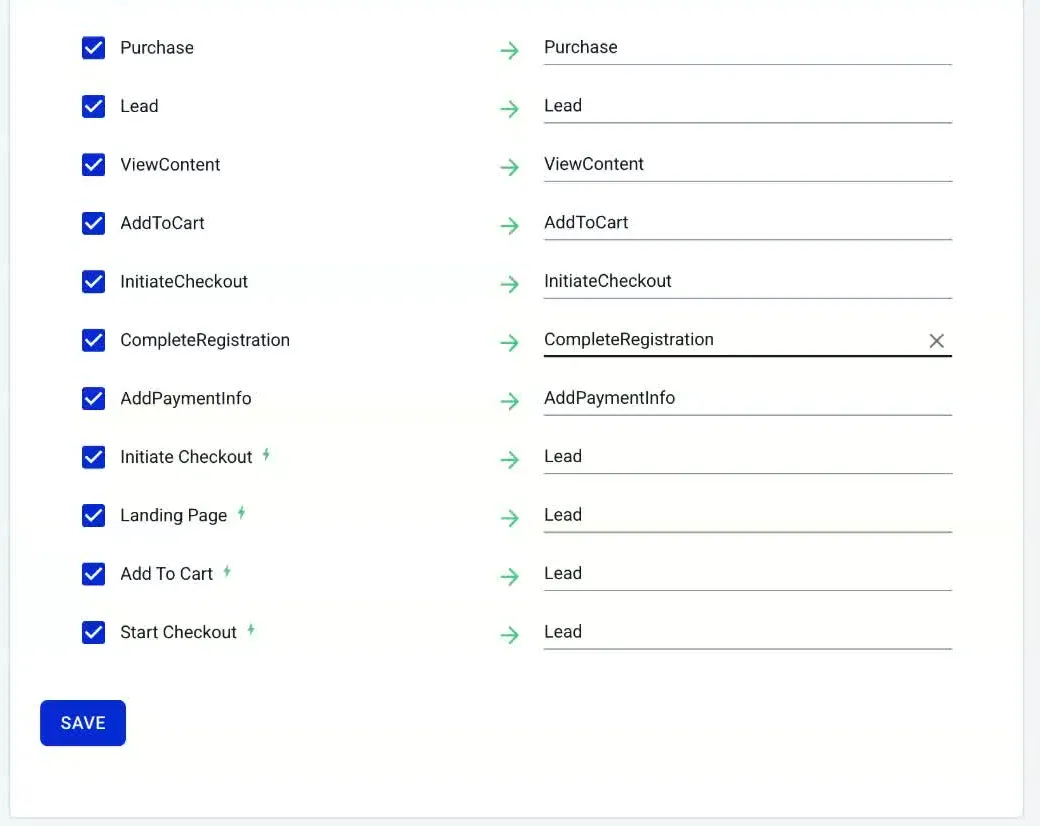
These are real mappings from two EverFlow networks:
| Custom event from the network | Mapped to |
|---|---|
Presale | Lead |
Landing Page | Lead |
Index | ViewContent |
Advertorial | ViewContent |
Interstitial | ViewContent |
Product Page Visit | ViewContent |
Add to Cart | AddToCart |
Checkout | InitiateCheckout |
Start Checkout | InitiateCheckout |
Two things to notice. Several differently named events collapse onto one standard event, which is how page-type events like Index, Advertorial, and Interstitial all become ViewContent. And a single network often sends the same step under inconsistent spellings, such as Add to Cart, Add to cart, and Add To Cart. Each of those is a separate custom event and each needs its own mapping.
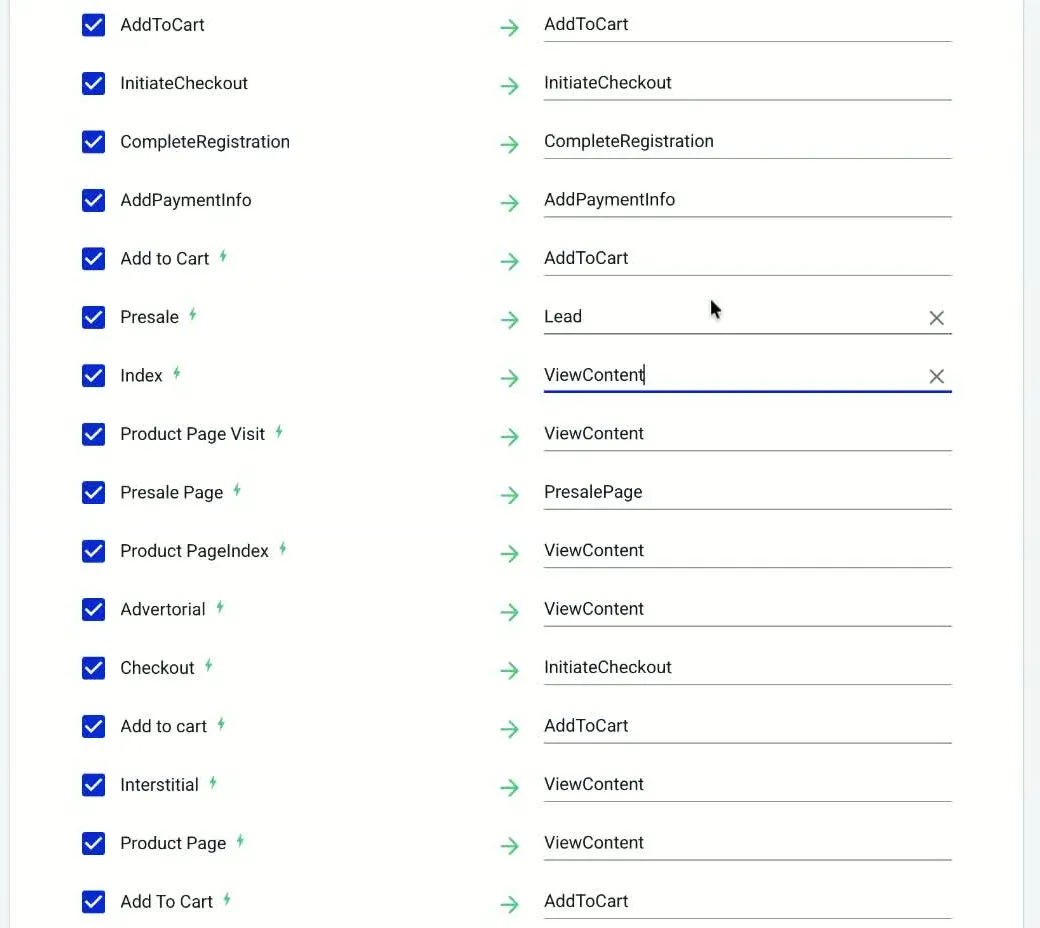
If no standard event fits, type your own name instead. In the example above, Presale Page is mapped to PresalePage, which AnyTrack then sends to your ad platform as a custom conversion.
Validate Your Setup
Section titled “Validate Your Setup”Check Link Tracking
Section titled “Check Link Tracking”Your affiliate links need proper tracking data tags. AnyTrack handles this automatically through AutoTag.
AutoTag Methods:
- Automatic (Recommended): AnyTrack finds and tags EverFlow links automatically
- AutoScan: Works with redirect plugins by scanning and tagging embedded links
- Manual: Add tracking attributes using
data-tracking-group="everflow"or append&sub5=--CLICK-ID--to links
Manual Link Example:
<a href="https://example.foo/goto/everflow-offer" data-tracking-group="everflow"> EverFlow Offer</a>Verify Link Tagging:
- Add an EverFlow affiliate link to your website
- Hover over the link or inspect it in browser developer tools
- Confirm the
sub5=[click_id]parameter is added automatically
Verify Conversions
Section titled “Verify Conversions”Check your conversion tracking by either:
- Waiting for a natural conversion
- Creating a test conversion yourself
Then inspect the conversion logs in your AnyTrack dashboard to confirm data flows correctly.
Check Sub5 Reports in EverFlow:
- Log into your EverFlow affiliate dashboard
- Navigate to Reports → Sub5 Report
- Verify click IDs appear in the sub5 column (e.g.,
XZ4vHGkJhOjhOJfybPTUzyCl3CkcGA0xuc)
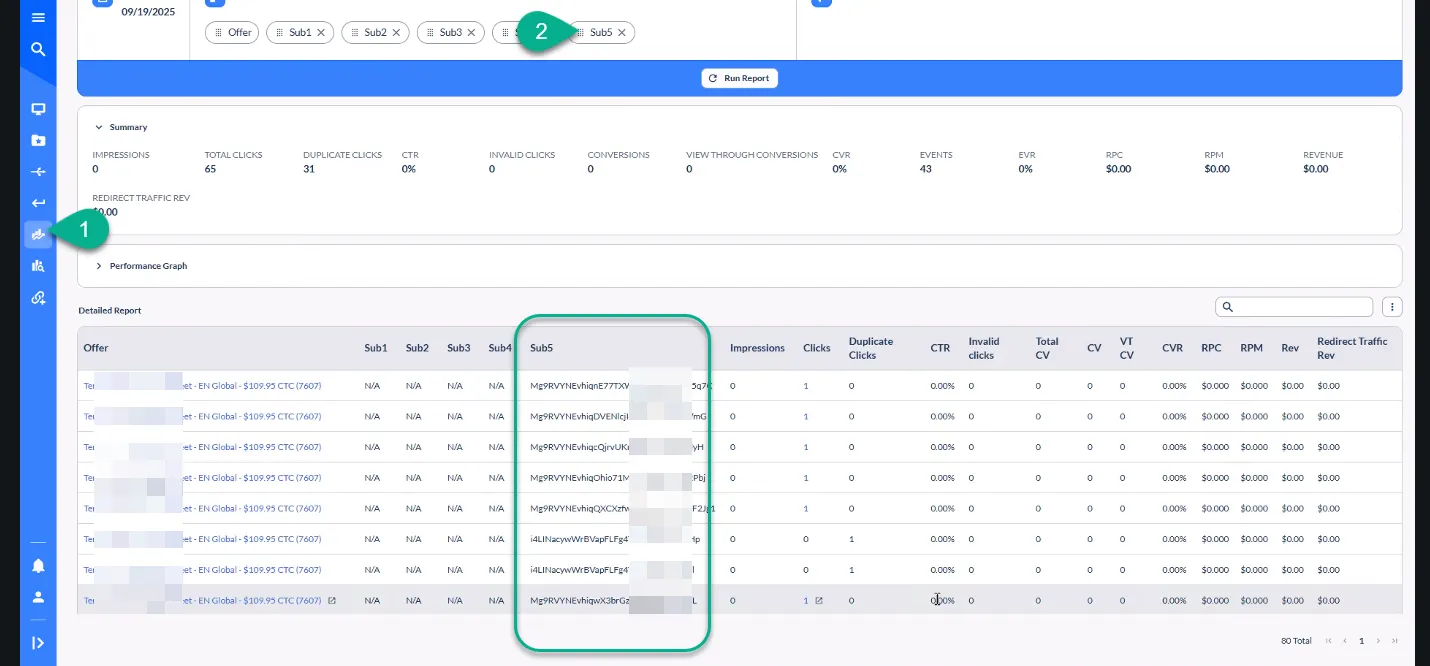
Sample Conversion Data:
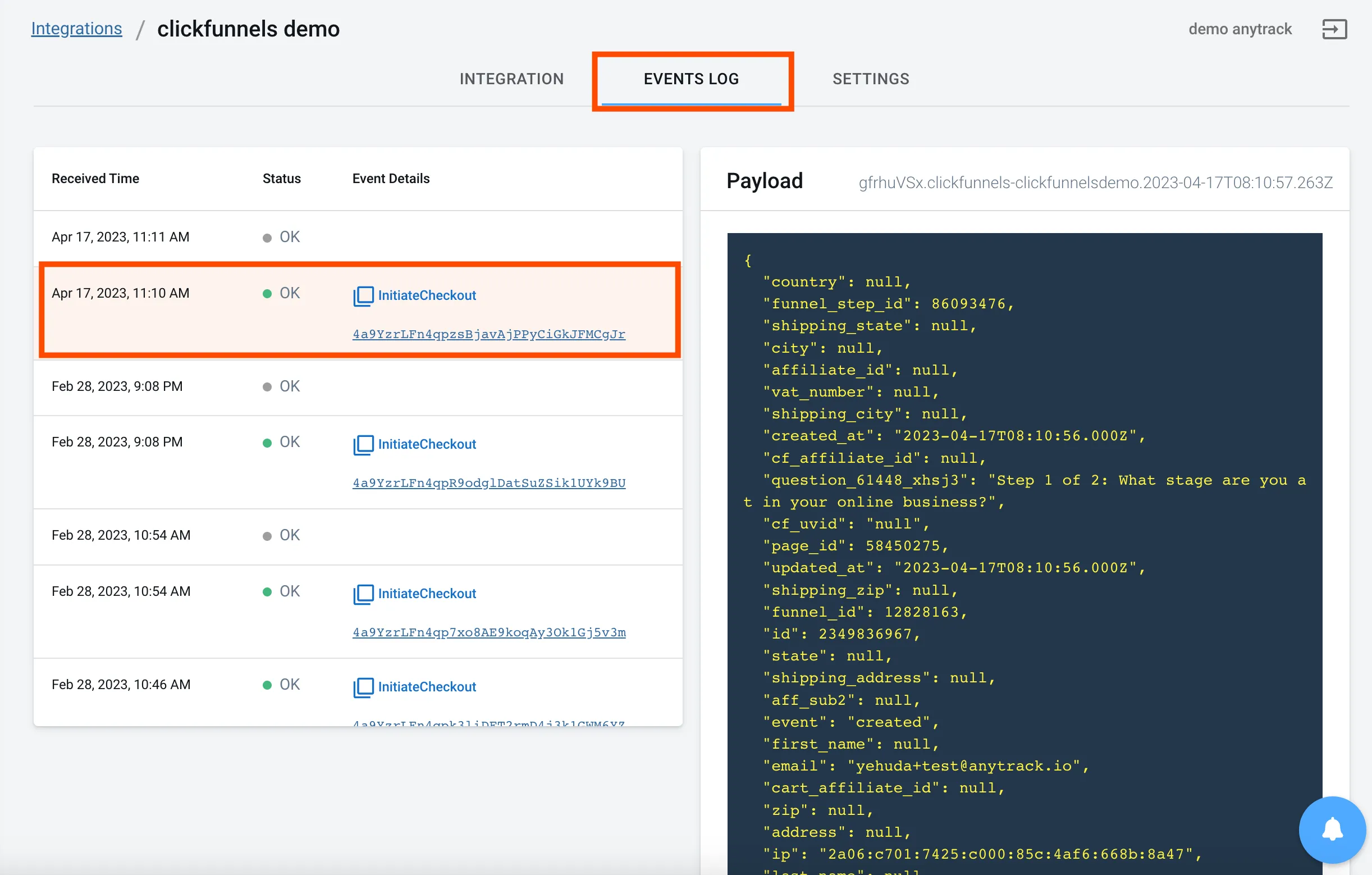
This is a full postback payload for a default conversion, as recorded in the Events Log:
{ "creative_name": null, "mac_address_sha1": null, "affiliate_id": "xxxxx", "android_id_sha1": null, "idfa_md5": null, "device_type": "Mobile", "offer_project_id": null, "creative_id": "0", "datetime": "2026-07-28 04:51:43", "geo_country_name": "United States", "android_id_md5": null, "payout_amount": "40.0", "app_id": null, "transaction_id": "d293ba0bbd5a4c09853b73baba41cda3", "idfa": null, "offer_name": "Water Filter - $39.99 - US", "google_aid": null, "revenue_amount": null, "user_id": null, "idfa_sha1": null, "geo_region_name": "New Hampshire", "event_name": "Base", "device_platform": "Android", "mac_address_md5": null, "device_os_version": "13.0", "device_language": "en", "geo_region_code": "NH", "sub4": null, "sub5": "XxxxxxxxxxxxxTSlvfogo77d3IMgPnHZgC", "sub2": null, "device_model": "SM-G781V", "sub3": null, "device_browser": "Chrome", "sub1": null, "advertiser_id": null, "random": "748351167", "offer_currency": "USD", "mac_address": null, "user_agent": "Mozilla/5.0 (Linux; Android 10; K) AppleWebKit/537.36 (KHTML, like Gecko) Chrome/150.0.0.0 Mobile Safari/537.36", "timestamp": [ "1785214303", "1785214303" ], "amount": null, "offer_id": "1035", "affiliate_name": "xxxxx", "event_id": "4985", "device_brand": "Samsung", "geo_country_code": "US", "source_id": null, "advertiser_name": null, "android_id": null}The fields that matter when you’re debugging:
| Field | What it tells you |
|---|---|
sub5 | The AnyTrack click_id. If this is null, the click was never tagged and the conversion can’t attribute |
event_name | The event’s name. In this payload it is Base, EverFlow’s default conversion |
payout_amount | Your commission on the conversion. The default conversion is the one that carries this value |
transaction_id | EverFlow’s unique ID for the conversion, useful when comparing against EverFlow’s own reports |
offer_id | Which offer converted |
Most fields arrive null on a typical web conversion. The mobile identifier fields (idfa, google_aid, android_id, mac_address, and their hashes) are part of EverFlow’s standard payload and stay empty unless the traffic came from an app.
What to Expect After Setup
Section titled “What to Expect After Setup”Timeline
Section titled “Timeline”Real-Time Tracking:
- Immediate: Link clicks appear as OutboundClick events in AnyTrack (visible within seconds)
- Real-time conversions: Conversion data flows from EverFlow to AnyTrack and then to your connected ad platforms in real-time
- Validation timeframe: Depending on your traffic volume, you can validate the integration within minutes to hours (not days)
Where to Check
Section titled “Where to Check”- Link tracking: Use the AnyTrack Pixel Helper extension on your website
- Conversions: Check the Events Log in your AnyTrack dashboard
- Attribution: View Campaign Reports in your dashboard
- Real-time validation: Connect Google Analytics 4 and use Debug View to see events in real-time
If You Don’t See Data
Section titled “If You Don’t See Data”If conversions don’t appear within a few hours of active traffic:
- Review the Events Log for errors
- Verify the
sub5parameter appears in your EverFlow sub5 reports - Follow troubleshooting steps below
Common Questions
FAQ was last reviewed on 2026-10-05
Can I integrate an EverFlow-based affiliate network with this integration?
Can I import past conversions?
click_id to connect them to traffic sources.Can I track direct linking campaigns?
Can I use a different <code>subid</code> parameter?
sub5. However, some networks use custom parameters like subid5 or subid1. If your network uses a different parameter, you'll need to manually append it to your links using the --CLICK-ID-- token (e.g., &subid5=--CLICK-ID--).What if conversions don't have a <code>click_id</code>?
click_id cannot be tracked. The click_id connects the conversion back to the original website visit and traffic source. Without it, AnyTrack cannot attribute the conversion correctly. Learn more about click IDsCan I change the conversion event names?
Purchase and cannot be remapped. Every other conversion event arrives under the name the merchant gave it in EverFlow, and you map those to any standard event you want in the integration's Event Mapping, such as Lead, AddToCart, or InitiateCheckout.Why isn't my custom EverFlow event being sent to my ad platforms?
event_name parameter. The event then appears in Event Mapping the first time AnyTrack receives it, and you select the standard event it should map to. Until you map it, the event shows in your reports but is not sent to ad platforms.Troubleshooting
Section titled “Troubleshooting”Step 1: Verify Your Basic Setup
Section titled “Step 1: Verify Your Basic Setup”Check Tracking Tag Installation
- Install the AnyTrack Pixel Helper Chrome Extension
- Visit your website
- Verify the extension icon turns blue (indicating AnyTrack Tag is detected)
- If the icon doesn’t turn blue, review tag installation
Verify Postback URL is Valid
- Go to your AnyTrack integration settings for EverFlow
- Check for error messages in the integration status
- If you see errors:
- Log into your EverFlow affiliate dashboard
- Verify postback URL is correctly configured
- Ensure postback status is set to “Active”
- Update the postback URL if needed
- Click Save
Step 2: Not Getting Any Conversions?
Section titled “Step 2: Not Getting Any Conversions?”Check Your Integration Settings
- Verify the postback URL is set and active in your EverFlow dashboard
- Confirm you’re using the correct AutoTag parameter (
sub5or your network’s custom parameter) - Check the sub5 report to ensure click IDs are being passed
Check Your Link Tagging
- Verify links aren’t hidden behind JavaScript or double redirects
- Ensure links use standard
<a>HTML elements - Try adding the tracking group manually:
data-tracking-group="everflow"
Step 3: Conversions Show Errors?
Section titled “Step 3: Conversions Show Errors?”Most Common Issue: Missing Click ID This happens when AutoTag couldn’t add the click_id to your affiliate links.
Solutions:
- Check if links are behind JavaScript or complex redirects
- Verify links are in standard HTML format
- Manually add tracking group attributes to links
- Ensure your offers only get traffic from pages with the AnyTrack Tag installed
- Wait for new traffic if you just installed AnyTrack (old traffic wasn’t tracked)
Conversions Not Validated?
- Compare your postback URL with AnyTrack’s pre-defined postback URL
- Copy the Event Reference from your Events Log and contact support