
Campaign Report
See 100% of your traffic and every event in one place, from paid ads to organic, email, and direct. Compare ad platform attributed results against AnyTrack click-based conversions, calculate ROAS from real numbers, and drill down from campaign to ad level across Meta Ads, Google Ads, TikTok Ads, ChatGPT Ads, and Microsoft Ads.
The Campaign Report is where you see 100% of your traffic and every event tied to it — paid ads, organic search, organic shopping, AI assistants, email, social, referral, and direct. On top of that traffic, it merges the campaign metrics AnyTrack fetches from Meta Ads, Google Ads, TikTok Ads, ChatGPT Ads, and Microsoft Ads (spend, impressions, clicks) with the conversions AnyTrack tracks server-side, so every campaign, ad set, and ad shows its cost, conversions, revenue, and ROAS on a single row.
What the Campaign Report Shows
Section titled “What the Campaign Report Shows”The report has two layers that work together:
All of your traffic and its events, with each session assigned to a channel — paid, organic search, organic shopping, AI assistants, email, social, referral, or direct.
For Meta Ads, Google Ads, TikTok Ads, ChatGPT Ads, and Microsoft Ads, the campaign, ad set, and ad structure with spend fetched from the ad platform API.
How It Works
Section titled “How It Works”The report blends three data sources into one view:
Campaign structure, ad spend, impressions, and clicks fetched from Meta Ads, Google Ads, TikTok Ads, ChatGPT Ads, and Microsoft Ads. AnyTrack resolves each campaign, ad set, ad group, and ad ID to its actual name.
Sessions, pageviews, outbound clicks, and form submissions collected by the AnyTrack Tracking Tag on your website.
Purchase, lead, and registration events received from conversion source integrations (Shopify, affiliate networks) via API or webhook.
How AnyTrack Assigns a Channel
Section titled “How AnyTrack Assigns a Channel”Every session is assigned to a channel on a best-effort basis. AnyTrack analyzes the referrer, the parameters passed in the URL, and every other available signal, then uses that processed data to decide where the visit came from. This is why organic search, AI assistants, email, social, and direct traffic all appear in the report — not only your paid campaigns.
Assigning a session to a channel is separate from attributing it to a specific campaign, ad set, or ad. Channel assignment happens for all traffic. Campaign-level attribution happens only when AnyTrack can match the visit to a campaign it fetched from the ad platform API, as described next.
How Campaigns Align With Your Traffic
Section titled “How Campaigns Align With Your Traffic”For connected ad platforms, AnyTrack fetches campaign metrics from the Ads API, and the underlying keys are the campaign ID, ad set ID, and ad ID. To line those metrics up with real visits, AnyTrack has to recognize the same IDs on the incoming session.
That is the job of the ad platform UTM template. Each platform’s template carries dynamic tokens that inject the campaign, ad set, and ad IDs into the landing-page URL:
Install the platform UTM template
Add the UTM template for every ad platform connected to AnyTrack. The template injects the campaign, ad set, and ad IDs into your ad URLs.
A visitor clicks the ad
The click lands on your site and the session starts carrying those UTM values, including the platform IDs.
AnyTrack matches the IDs
AnyTrack aligns the UTM-carried IDs with the campaign, ad set, and ad data it fetched from the Ads API.
Everything lands on one row
Cost, conversions, revenue, and, where the platform supports it, attributed results all appear on the same line for that campaign, ad set, or ad.
Attribution: First Ad Click and Last Ad Click
Section titled “Attribution: First Ad Click and Last Ad Click”AnyTrack attributes conversions on an identifiable ad click, never on a view. You choose which click in the journey gets the credit using the Attribution control in the Campaign Report:
| Model | Credits the conversion to |
|---|---|
| First Ad Click | The first ad click in the visitor’s journey |
| Last Ad Click | The most recent ad click before the conversion |
Both models depend on the UTM parameters being present on the ad click, because that is what identifies the campaign, ad set, and ad. Switching the model is a view toggle — it changes how the current report reads, not your tracking. For the full explanation, see Attribution Explained, and for what changes in the report when you switch, see First Click vs Last Click.
By default, AnyTrack has no attribution window: it credits the ad click it tracked, without a look-back window that would credit a view. On Personal and above, you can set a fixed window in Property Settings: 1, 7, or 30 days, or the maximum available. The window applies to attribution reporting across your AnyTrack reports. On Free and Starter, the setting shows Upgrade to Customize.
Attributed Results vs. AnyTrack Conversions
Section titled “Attributed Results vs. AnyTrack Conversions”The Campaign Report shows two conversion columns side by side, and they come from two different places.
| Column | What it shows | Source |
|---|---|---|
| Attributed Results / Attributed Revenue | The campaign’s results measured against the objective you set for it, credited by the ad platform’s model and window | Meta Ads, Google Ads, TikTok Ads, ChatGPT Ads, Microsoft Ads |
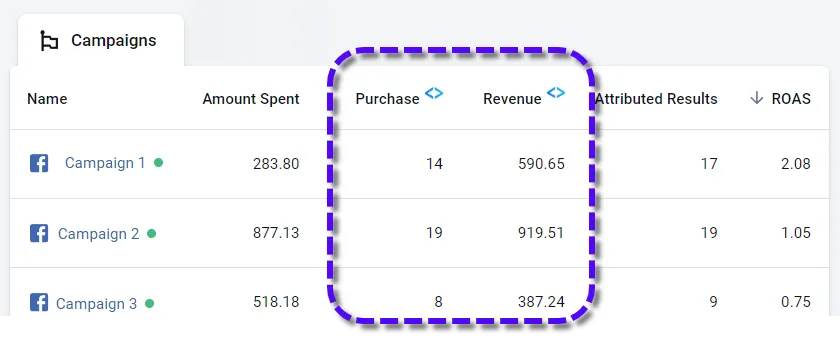
| Purchase / Revenue (AnyTrack) | Conversions AnyTrack tracked server-side and matched to a campaign via an identifiable ad click | Your conversion source integrations |
What “Attributed Results” means. These are the ad platform’s own attributed conversions, measured against your campaign objective. If a Facebook sales campaign shows 10 attributed results and $200 attributed revenue, Facebook credited that campaign with 10 purchases worth $200 in total — based on its attribution model and window. Facebook’s default is 7-day click and 1-day (24-hour) view. AnyTrack sends the conversion to Facebook via the Conversion API; Facebook then identifies the customer who saw or clicked the ad and attributes the purchase to the campaign, ad set, and ad on its own schedule.
Why the two numbers differ
Section titled “Why the two numbers differ”Attributed results and AnyTrack conversions usually differ, for two reasons:
AnyTrack credits a campaign only on an identifiable ad click. Facebook can also credit a view. A shopper who saw the ad, then bought after arriving from organic search, counts for Facebook (post-view) but not against a campaign in AnyTrack — because there was no ad click.
AnyTrack is real-time: the purchases and revenue you see now are the actual numbers at this moment. Facebook can take up to about 72 hours to process a conversion and attribute it to an ad.
Attributed Revenue vs. Your Ads Manager
Section titled “Attributed Revenue vs. Your Ads Manager”Attributed Revenue and Attributed Results are the ad platform’s own figures, fetched straight from Meta Ads, Google Ads, TikTok Ads, ChatGPT Ads, and Microsoft Ads — AnyTrack does not recalculate them. They are the same numbers your Ads Manager reports, so they reconcile once you compare them on the same basis:
- Sync timing. AnyTrack refreshes these figures periodically, and the platforms keep re-attributing conversions for up to about 72 hours. A snapshot can briefly lag your live Ads Manager.
- Timezone and date range. Match your Ads Manager to your AnyTrack property timezone and the exact same date range before comparing.
- Google Ads conversion timing. AnyTrack aligns Google’s figures to conversion time, while the Google Ads default columns credit each conversion to the time of the ad click. To compare like for like, open Modify columns in Google Ads and add Conv. value (by conv. time) (and Conversions (by conv. time) for counts) — those columns match AnyTrack’s basis, whereas the default columns will not line up.
Match those and the numbers reconcile. This is a different comparison from the AnyTrack Revenue column above, which is your real server-side orders matched to a campaign by an identifiable ad click.
Evaluate Campaign Performance
Section titled “Evaluate Campaign Performance”Columns marked with the AnyTrack icon show data measured directly from your integrations (actual conversions). Columns like Amount Spent and Attributed Results come from the ad platform.
The ROAS column combines both: actual revenue from your conversion sources divided by actual ad spend from the ad platform.
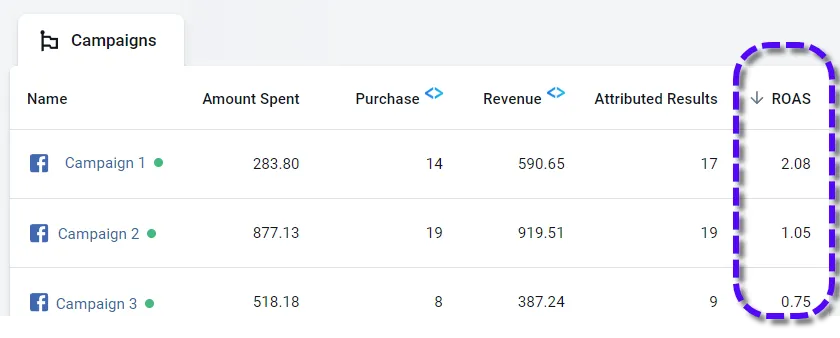
Use ROAS to identify campaigns not covering their own cost (ROAS below 1.0) and pause them directly from the report.
When Traffic Has No UTMs
Section titled “When Traffic Has No UTMs”Missing or mismatched UTM parameters are the most common reason a visit does not line up with a campaign. AnyTrack handles it as gracefully as it can:
- UTMs from another system. If your ads already carry UTMs from a different platform, AnyTrack does its best to align the session with a campaign, ad set, and ad from the Ads API. AnyTrack supports the UTM and custom parameters passed by many tracking and analytics platforms for exactly this reason.
- No UTMs at all. AnyTrack still tracks the session and its conversions and can tell the traffic came from Facebook using the referrer or the Facebook click ID — but the visit is not attached to a campaign, ad set, or ad.
Key Features
Section titled “Key Features”Add and Customize Columns
Section titled “Add and Customize Columns”Add metrics from four groups: Conversion Rates, Tracking Events, Costs, and Performance. View all available metrics in Advanced Options.
View Campaign Conversions
Section titled “View Campaign Conversions”Select a campaign, click the pencil icon, and choose View Conversions to see all conversion events for that campaign, ad set, or ad. Filter further by event type or integration.
Campaign Drill Down
Section titled “Campaign Drill Down”Click on any campaign to drill down into its ad sets and individual ads, with a full metric breakdown at each level.
Pause and Resume Campaigns
Section titled “Pause and Resume Campaigns”Select a campaign and click Pause or Resume to control it directly from the report.
Report Templates
Section titled “Report Templates”Choose from pre-built column templates for eCommerce, lead generation, or affiliate marketing, or fully customize the columns for your specific needs.
Export the Report
Section titled “Export the Report”Export your campaign data directly from the Campaign Report view. Select the campaigns or ad sets you want and export them to a single file for sharing or deeper analysis in a spreadsheet.
How UTMs Map to Report Dimensions
Section titled “How UTMs Map to Report Dimensions”Alongside the platform IDs, AnyTrack reads the standard UTM parameters on the first landing-page URL of each visit. Each one populates a specific part of the report:
| UTM parameter | Where it appears in the report |
|---|---|
utm_source | Traffic source (for example, instagram, google, youtube) |
utm_medium | Channel type (for example, social, cpc, email) |
utm_campaign | Campaign name, under the Campaigns tab |
utm_content | Ad set / ad group, under the Ad Sets tab |
utm_term | Keyword, under the Keywords tab |
For connected ad platforms, the campaign, ad set, and ad structure resolves automatically from the platform IDs in the UTM template. For organic or manually tagged links — like an Instagram bio link — set the UTMs yourself to control how each visit is labeled. For example, utm_campaign=instagram&utm_term=bio shows instagram under Campaigns and bio under Keywords. The same UTM values are reusable across AnyTrack, GA4, and your ad platforms to build custom audiences.
Platform Limitations
Section titled “Platform Limitations”Amount Spent, Impressions, and Clicks are available for Meta Ads, Google Ads, TikTok Ads, ChatGPT Ads, and Microsoft Ads. Attributed Results and Attributed Revenue are the ad platform’s own attributed figures, and AnyTrack fetches them from Meta Ads, Google Ads, TikTok Ads, ChatGPT Ads, and Microsoft Ads.
AnyTrack does not fetch campaign metrics for Taboola or Outbrain. For those platforms, check the metrics in the platform’s own dashboard. This does not affect the conversion data AnyTrack sends to them server-side.
Frequently Asked Questions
FAQ was last reviewed on 2026-10-05