
Pixel Helper Extension
AnyTrack Pixel Helper is a free Chrome extension that detects the AnyTrack Tag and ad platform pixels such as Meta, Google, TikTok, and Reddit on any website. Inspect live browser events, validate parameters, and debug your setup without touching code.
Install the AnyTrack Pixel Helper Chrome Extension for direct access to essential tracking data from your AnyTrack properties. Use it to validate your AnyTrack Tag configuration, verify your ad platform pixels, and inspect your events without leaving your browser.
Overview

Section titled “Overview”The AnyTrack Pixel Helper is a free Chrome extension that installs in your browser, enabling you to inspect the setup of the Properties you are tracking with AnyTrack. Also verify the presence of your ad platform pixels and the code of your snippets. The extension shows the events that fire on the page, so you can track each action where it happens.
Installing the Extension
Section titled “Installing the Extension”Follow these steps to install the AnyTrack Pixel Helper Chrome Extension:
- Visit the Chrome Web Store and find the AnyTrack Pixel Helper extension.
- Install the extension and add it to your browser.
- Pin the extension to keep it visible in the browser bar.
Using the Extension
Section titled “Using the Extension”-
Visit the website where you have installed the AnyTrack Tag.
-
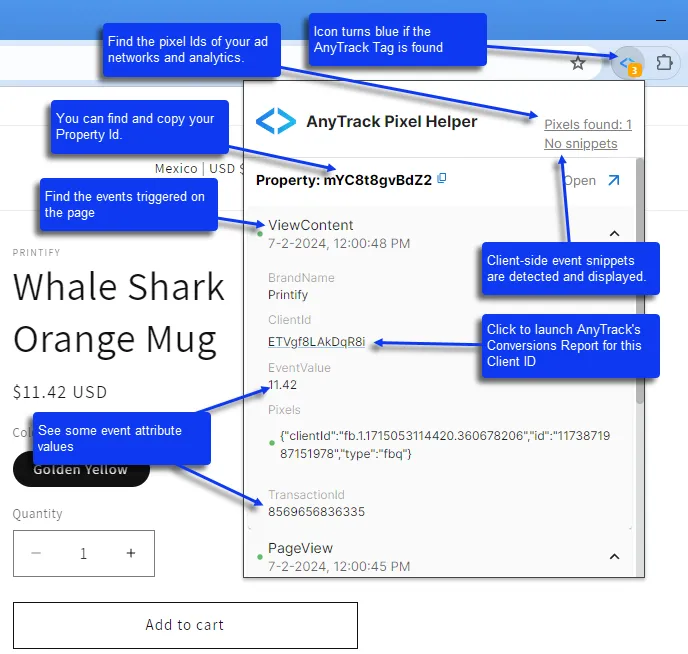
If the AnyTrack Tag is detected on the page, the extension icon turns blue. A grey icon means no AnyTrack Tag was found.

-
Click the extension icon to open the inspection panel.
What the Extension Shows
Section titled “What the Extension Shows”When you open the AnyTrack Pixel Helper, it displays the following information for the current page:
- AnyTrack Tag Status: Confirms the AnyTrack Tag is present and shows the associated Property ID.
- Pixels on the page: Lists the ad platform pixels found on the page, such as the Meta Pixel, the Google Ads tag, and the TikTok Pixel. Use this list to verify that your ad platform pixels load and send events.
- Events on the page: Shows browser-based events as they happen in real time. Each event displays the event name, associated parameters, and which pixels received the data. Use this to confirm that clicks, form submissions, and other actions are being tracked.
How to Test Events with the Extension
Section titled “How to Test Events with the Extension”The list of events is the most useful part of the extension for debugging. To test your setup:
- Open the AnyTrack Pixel Helper on your website.
- Perform the action you want to track (click a link, submit a form, visit a page).
- Watch the list of events for the corresponding event to appear.
- Verify the event name matches what you expect and that the correct pixels received it.
If an event does not appear, check that the action triggers a browser-based event and that your ad blocker is disabled.
Troubleshooting
Section titled “Troubleshooting”| Problem | Cause | Solution |
|---|---|---|
| Extension icon stays grey | AnyTrack Tag is not installed on the page | Verify the tag is present by checking your page source for the AnyTrack script. See Install the AnyTrack Tag. |
| Pixels not showing | Ad blocker is active | Disable your ad blocker or allowlist the website. Ad blockers commonly block Meta Pixel, TikTok Pixel, and similar scripts. |
| Events not appearing in the extension | The event is server-side, not browser-based | The AnyTrack Pixel Helper only detects browser-based events. Server-side events (postback, webhooks, API) are tracked in the integration’s Events Log inside your AnyTrack dashboard. |
| Extension not working after install | Browser needs a refresh | Close and reopen the browser tab. If the issue persists, remove and reinstall the extension. |
Related Resources
Section titled “Related Resources”Frequently Asked Questions
FAQ was last reviewed on 2026-10-05