
ClickBank
The article provides an overview of the ClickBank integration with AnyTrack, highlighting the new affiliate tracking parameters that enhance tracking capabilities.
ClickBank Integration Overview
Section titled “ClickBank Integration Overview”AnyTrack and ClickBank are the perfect integration for data driven affiliate marketers. With AnyTrack, you can now send accurate conversion data from your ClickBank account to your ad platforms Conversion API like Google Ads, Facebook Ads, TikTok Ads and more in real-time. This allows you to optimize your ad campaigns with rich conversion data and the complete customer journeys. What’s even better is that AnyTrack also enables affiliate marketers to build custom audiences across all ad platforms, with granular customer journey insights, including product level data and abandoned carts.
Connect to ClickBank Integration
How does the ClickBank AnyTrack integration work:
Section titled “How does the ClickBank AnyTrack integration work:”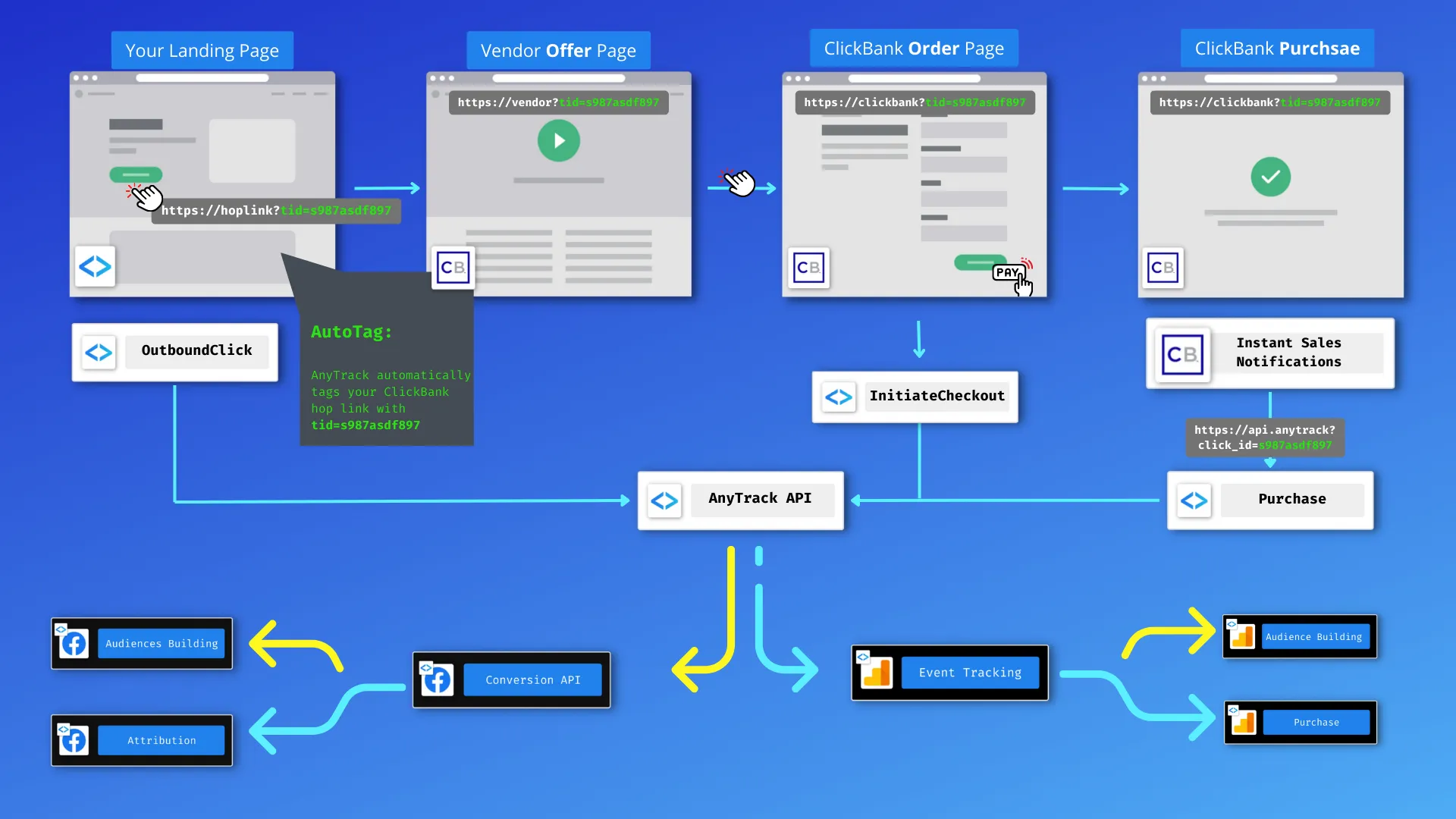
- Traffic: When visitors land on your website, AnyTrack collects traffic source data and First Party data.
- Engagements: When visitors click on your ClickBank affiliate links, AnyTrack does a few things:
- Collects granular data tied to the
OutboundClick. - Triggers Event Tracking API requests to your Tracking Tags and analytics.
- Collects granular data tied to the
- Conversions: When visitors convert on the merchant’s website, AnyTrack receives real time conversion data through the ClickBank Postback URL.
- Attribution: AnyTrack processes the conversion data and reports it across various reporting sections of the AnyTrack Dashboard.
- Conversion API: AnyTrack then sends your conversions to your Ad Platforms’ Conversion API so you can feed your ad platform’s Machine Learning, AI and automatic optimization according to 100% of your conversion data.
Technical details
Section titled “Technical details”| Reference | Value | Information |
|---|---|---|
| Tracking Group | clickbank | The Tracking Group reference can be used to activate AutoTag. |
| Subid Parameter (hop links) | extclid | Carries the AnyTrack click_id on ClickBank hop links. ClickBank sends it to affiliates and to vendors. |
| Subid Parameter (hop links) | tid | Carries the AnyTrack click_id on ClickBank hop links, next to extclid. |
| Subid Parameter (payment links) | vtid | Carries the AnyTrack click_id on ClickBank payment links (pay.clickbank.net). |
| Tracking Method | Postback URL | - |
Standard Conversion Event Mapping
Section titled “Standard Conversion Event Mapping”AnyTrack enables you to track all Event Types from ClickBank and map these events to either standard events or custom events.
ClickBank sends each transaction with a transactionType. The initial sale of a standard or a recurring product arrives as SALE. An upsell arrives as a SALE notification with an upsell object, and AnyTrack lists it as UPSELL. A rebill arrives as BILL. When a visitor loads a ClickBank order form, AnyTrack records an Order Form View.
By default, AnyTrack maps SALE to Purchase, and maps UPSELL and BILL to Upsell. You can remap any event to a different standard event or a custom conversion name in the Event Mapping.
The ClickBank Integration Events section of the integration page shows the same event names as the table below.
| ClickBank event | AnyTrack event (default) | Details | Data source |
|---|---|---|---|
| Hop link click | OutboundClick | A visitor clicks a ClickBank hop link. | AnyTrack Tracking Tag |
Order Form View | InitiateCheckout | A visitor loads a ClickBank order form. | Postback URL (ClickBank Tracking Pixel) |
SALE | Purchase | The initial sale of a standard or a recurring product. | Postback URL (Instant Payment Notification) |
UPSELL | Upsell | The buyer accepts an upsell after the initial sale. ClickBank sends it as a SALE with an upsell object. | Postback URL (Instant Payment Notification) |
BILL | Upsell | A rebill: a recurring payment for a subscription product. | Postback URL (Instant Payment Notification) |
RFND, CGBK, TEST, CANCEL-REBILL | Not recorded | AnyTrack ignores refund, chargeback, test, and cancellation notifications. | Postback URL (Instant Payment Notification) |
The ClickBank Postback URL
Section titled “The ClickBank Postback URL”AnyTrack generates a Postback URL for each ClickBank integration. Copy your URL from the Integration tab of the ClickBank integration. Your URL contains your own identifiers, like this example:
https://t1.anytrack.io/hBtoE3hN/collect/ClickBankWatch the complete ClickBank setup from start to finish, including sales, upsells, and order form tracking.
Setup Guide
Section titled “Setup Guide”Step #1: Add ClickBank to your AnyTrack account
Section titled “Step #1: Add ClickBank to your AnyTrack account”- Open the Integration Catalog and search for ClickBank.
- Click the ClickBank card.
- Click Install Integration.
- In Name, enter a name that identifies the integration.
- Click Create.
Step #2: Connect your ClickBank account
Section titled “Step #2: Connect your ClickBank account”The ClickBank integration opens on the Integration tab. The tab shows your ClickBank Postback URL.
- In Integration Type, select Affiliate or Vendor. AnyTrack then accepts only the purchases for that role. If you leave the field empty, AnyTrack accepts the purchases for both roles.
- In Username, enter your ClickBank account nickname. Do not enter your email address. AnyTrack uses the nickname to build the Follow this link links in the setup instructions.
- Copy the Postback URL.
- Click Connect.
The integration page then shows the setup instructions: Step 1: Sales and Upsell Tracking and Step 2: Order form tracking. Steps #3 and #4 below follow those instructions.
Step #3: Sales and Upsell Tracking
Section titled “Step #3: Sales and Upsell Tracking”ClickBank’s Instant Payment Notification (IPN) sends each sale, upsell, and rebill to your Postback URL. The data depends on your role in the transaction:
- Vendor: ClickBank sends the customer data (name, email, phone number, and address).
- Affiliate: ClickBank sends only the billing state, postal code, and country of the customer.
-
Copy the Postback URL.
-
In Step 1: Sales and Upsell Tracking on the integration page, click Follow this link. ClickBank opens your Instant Notification settings (Vendor Settings > My Site > Advanced Tools > Edit).
-
In Secret Key, enter
ANYTRACKin capital letters. AnyTrack uses this key to decrypt the ClickBank notifications. -
Paste the Postback URL in the Instant Notification URL field. If the field does not show, click the request access link. Answer Yes to all questions. Then click Save Changes & Request API Access.
-
Select version 8.0. If version 8.0 is not available, select version 7.0.
-
Click Test IPN. ClickBank marks the URL as Verified when the test succeeds.
-
Click Save Changes.
Step #4: Order form tracking
Section titled “Step #4: Order form tracking”ClickBank’s Integrated Sales Reporting tells AnyTrack when a visitor loads a ClickBank order form.
-
In Step 2: Order form tracking on the integration page, click Follow this link. ClickBank opens your Integrated Sales Reporting settings (Vendor Settings > My Site > Integrated Sales Reporting > Add Tracking Code).
-
In Type, select Tracking Pixel. Tracking Pixel is the ClickBank name for this type of tracking code.
-
Click Add.
-
Paste the Postback URL in the Tracking Pixel URL field.
-
In Track As, select your role:
- If you promote the product, select Affiliate.
- If you sell the product (vendor), select Seller.
-
In Where to Fire, select Order Form only. Do not select Confirmation Page: the Instant Payment Notification from Step #3 sends the sales.
-
Click Save.
-
Open the Integrated Sales Reporting section of the My Site page again.
-
Activate the new tracking code. Verify that its Status shows Active.
Step #5: Adjust the Conversion Event Mapping
Section titled “Step #5: Adjust the Conversion Event Mapping”The ClickBank Integration Events section on the Integration tab lists the four ClickBank events. Each ClickBank event shows its AnyTrack event.
- To stop tracking an event, clear its checkbox.
- To change the AnyTrack event, click the field next to the ClickBank event, and select a different event.
- To group
PurchaseandUpsellevents into one order, open ClickBank Combined Orders. Turn on Generate Combined Order out of Purchase and Upsell events. See Combined Orders. - Click Save.
Then map the AnyTrack events to the conversion events of each ad platform in Tracking Pixels. See Event Mapping.
Validate your integration
Section titled “Validate your integration”This section will enable you to validate the main aspects of your setup.
Link tracking
Section titled “Link tracking”Since Tracking starts when visitors clicks on offer links, you should verify that your links are tracked and AutoTagged.
AutoTag Methods
Section titled “AutoTag Methods”- Default: By default, AnyTrack automatically identifies and AutoTags ClickBank hop links and payment links found on your website. Like this sample ClickBank link.
- AutoScan: AnyTrack scans links that are embedded in redirects plugins and AutoTags them accordingly.
- Manual:
- Tracking Group Attribute: You add the tracking group attribute to links according to their tracking requirements. For example:
data-tracking-group="clickbank"orrel="clickbank". More about Tracking Group. - Click ID Token (hop links): Append
&extclid=--CLICK-ID--&tid=--CLICK-ID--to the hop link. - Click ID Token (payment links): Append
&vtid=--CLICK-ID--to your ClickBank payment link.
- Tracking Group Attribute: You add the tracking group attribute to links according to their tracking requirements. For example:
After you set up the links, open your ClickBank account reports. Verify that hop links pass extclid and tid, and that payment links pass vtid.
Here is an example of how you would manually update links from clickbank:
<a href="https://example.foo/goto/clickbank" data-tracking-group="clickbank">Hover on the ClickBank Demo Link to see the AnyTrack click_id</a>Conversion Tracking
Section titled “Conversion Tracking”To verify your setup, open a ClickBank order form from a tracked link on your website. ClickBank sends an Order Form View to AnyTrack when the order form loads.
- Open the Events Log tab of the ClickBank integration.
- Verify that the
Order Form Viewshows in the list. - Click the event to open its payload.
When AnyTrack receives and verifies the first conversion from the integration, the integration status changes to Active.
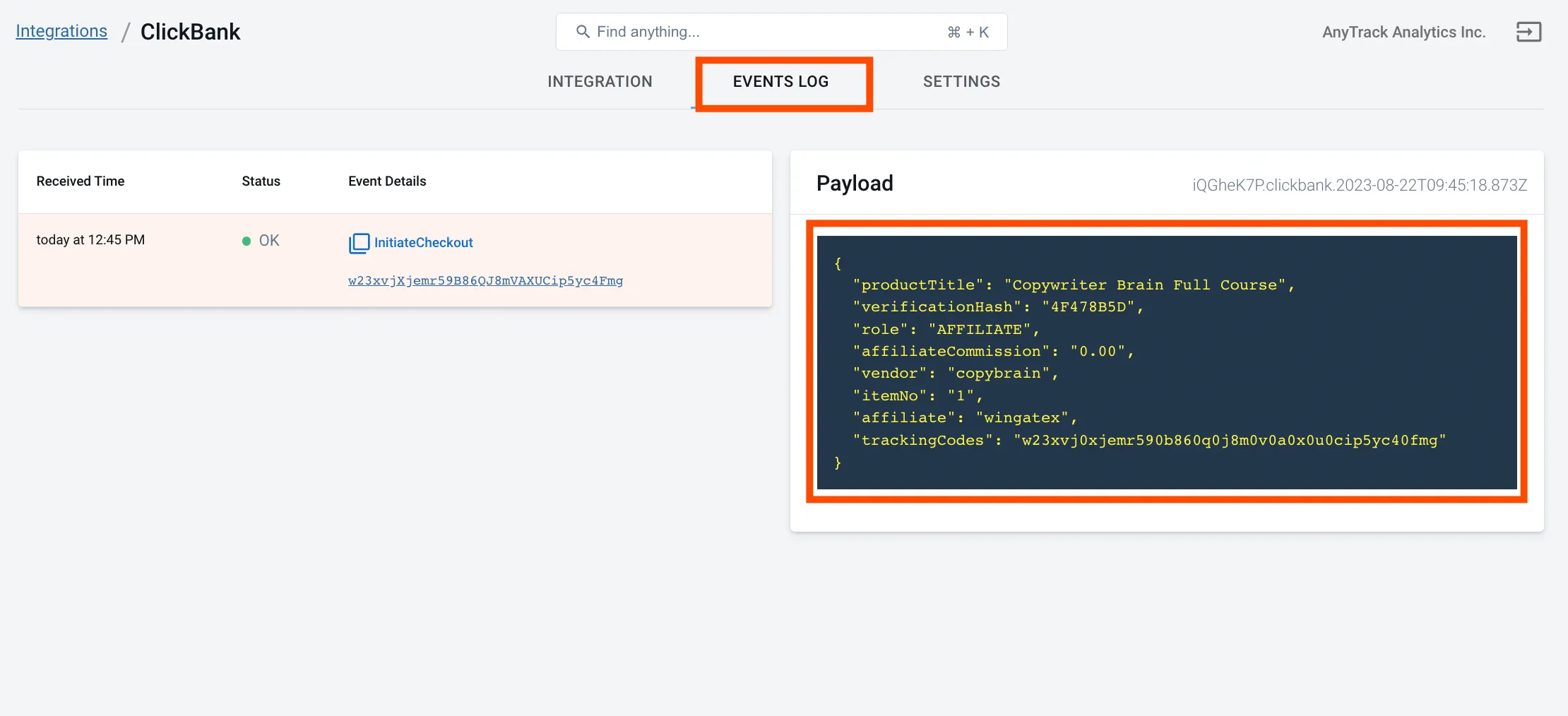
ClickBank conversion payload example
Section titled “ClickBank conversion payload example”{ "productTitle": "Copywriter Brain Full Course", "verificationHash": "4F478B5D", "role": "AFFILIATE", "affiliateCommission": "0.00", "vendor": "copybrain", "itemNo": "1", "affiliate": "wingatex", "trackingCodes": "w23xvj0xjemr590b860q0j8m0v0a0x0u0cip5yc40fmg"}Common Questions
FAQ was last reviewed on 2026-10-05