
Google Ads
Connect Google Ads to AnyTrack with one sign-in. AnyTrack creates your conversion actions, sends your conversions through the Conversion API with the customer data that Enhanced Conversions use, and imports your campaign spend into the Campaign Report.
This guide covers the Google Ads integration in AnyTrack. Connect your Google Ads account with one sign-in. AnyTrack then loads the Google Tag on your site, creates your conversion actions, sends your conversions through the Conversion API with the customer data that Enhanced Conversions use, and imports your campaign spend into the Campaign Report.
Watch the complete setup. The video shows how to connect your Google Ads account, create and map your conversion actions, turn on Enhanced Conversions, turn on the Conversion API, and add the UTM tracking template.
Key Features and Benefits
Section titled “Key Features and Benefits”- One sign-in connection. Authorize AnyTrack with your Google account. AnyTrack lists your Google Ads accounts for you. You do not enter a conversion ID.
- Automatic conversion actions. AnyTrack creates the recommended conversion actions in your Google Ads account and maps your AnyTrack standard events to them.
- Conversion API delivery. AnyTrack sends each conversion to Google Ads server-side. Smart Bidding learns from real sales, not from browser events alone.
- Enhanced Conversions. AnyTrack hashes the customer data from your conversion sources and sends it with each conversion. You do not configure the fields.
- Tag management. The AnyTrack Tracking Tag loads the
Google Tagfor you. You do not install the Google snippet on your pages. - Campaign metrics. AnyTrack imports your campaign structure with spend, impressions, and clicks. The Campaign Report shows cost, conversions, revenue, and
ROASper campaign, ad group, and ad. - UTM tracking template. One template attributes every Google Ads click to the campaign, ad group, keyword, and ad that served it.
- Campaign management. Pause and resume campaigns from the Campaign Report.
- Manager account support. Connect a Manager (MCC) account to manage more than one Google Ads account.
How the Integration Works
Section titled “How the Integration Works”How a Google Ads conversion flows through AnyTrack
From the ad click to Conversion API delivery and campaign metrics
A person clicks your Google Ad
Google auto-tagging adds the gclid click ID to your landing page URL. The UTM tracking template adds the campaign, ad group, keyword, and ad values.
gclid The Tracking Tag collects the click
The AnyTrack Tracking Tag collects the UTM parameters and the gclid value, and loads the Google Tag. AnyTrack stores the click ID with the visitor journey.
utm_id / gclid AnyTrack records the conversion
The visitor converts on your website or in a connected conversion source. AnyTrack records the conversion and attributes it to the Google Ads click.
AnyTrack sends the conversion to Google Ads
The conversion reaches the mapped conversion action with the hashed customer data that Enhanced Conversions use.
Google Ads API The Campaign Report shows cost and results
AnyTrack imports spend, impressions, and clicks from Google Ads and merges them with your conversions.
Why Integrate Google Ads with AnyTrack?
Section titled “Why Integrate Google Ads with AnyTrack?”Ad blockers and browser privacy limits hide conversions from browser-based tracking. AnyTrack recovers them with server-side tracking and Conversion API delivery. In Google’s own case studies, server-side measurement improved Square’s conversion measurement by 46% and raised Elkjøp’s user recognition from 3% to 25%.
- Real-time decisions. AnyTrack shows your conversions as they happen. Google Ads attributes them later, on its own schedule.
- Server-side delivery. Conversions reach Google Ads from the AnyTrack servers, so ad blockers and browser limits do not stop them.
- Cross-platform attribution. AnyTrack connects your Google Ads performance to the full customer journey, next to every other channel you run.
- Complete data for Smart Bidding. Enhanced Conversions and the Conversion API give Google Ads the full picture of your sales.
Google Ads Server-Side Tracking
Section titled “Google Ads Server-Side Tracking”AnyTrack sends every Google Ads conversion through the Google Ads API. AnyTrack matches the conversion to the tracked session that produced it, so Google Ads attributes the conversion to the original ad click.
Each conversion carries the hashed customer data that Enhanced Conversions use: email, phone, name, and address, when your conversion source supplies them. Google matches the data to signed-in users and recovers conversions that cookies miss. See Google Ads Enhanced Conversions.
This path bypasses ad blockers, ITP cookie expiry, and abandoned page loads that break browser-only tracking. It also carries conversions that happen long after the visit, and conversions that never happen in a browser: CRM stage changes, affiliate network postbacks, subscription renewals, and phone calls. For the full architecture across all ad platforms, see Conversion API.
Playbook
-
 Webhook
 -
 Google Ads
Feed Offline Lead Status to Google Ads
Closes happen in your CRM. Google never finds out. Webhook each stage change back to the click, so Smart Bidding learns from deals, not raw leads.
How to Set Up Google Ads in AnyTrack
Section titled “How to Set Up Google Ads in AnyTrack”Complete the setup in five steps. You do not need code.
1. Connect Your Google Ads Account
Section titled “1. Connect Your Google Ads Account”AnyTrack connects to Google Ads with one sign-in.
- In AnyTrack, open Tracking Pixels.
- On the Google Ads card, click Connect Pixel.
- Click Connect Google Ads. The first time, Google asks you to sign in and to authorize AnyTrack.
- Under Select a Pixel, select your Google Ads account. The list shows each account with its conversion ID.
2. Create and Map Your Conversion Actions
Section titled “2. Create and Map Your Conversion Actions”After you select the account, AnyTrack lists its standard events next to the conversion actions in your Google Ads account.
- Click Create and map conversion actions. AnyTrack creates one conversion action for each standard event and maps it.
- Review the mapping. To change a mapping, select a different conversion action.
- Click Connect Google Ads.
Check the Conversion Actions in Google Ads
Section titled “Check the Conversion Actions in Google Ads”- In Google Ads, open Goals, then Conversions, then Summary.
- Click View all conversion actions. Your AnyTrack conversion actions are in the list.
- Open a conversion action and open its Settings tab.
- Under Action optimization, select Primary for the one action you optimize for. Select Secondary for the actions you only observe.
- Click Save.
Map an Existing Conversion Action
Section titled “Map an Existing Conversion Action”AnyTrack lists the conversion actions that already exist in your Google Ads account. To map one, select it in the mapping list. AnyTrack supports conversion actions of type Website with Manual Setup.
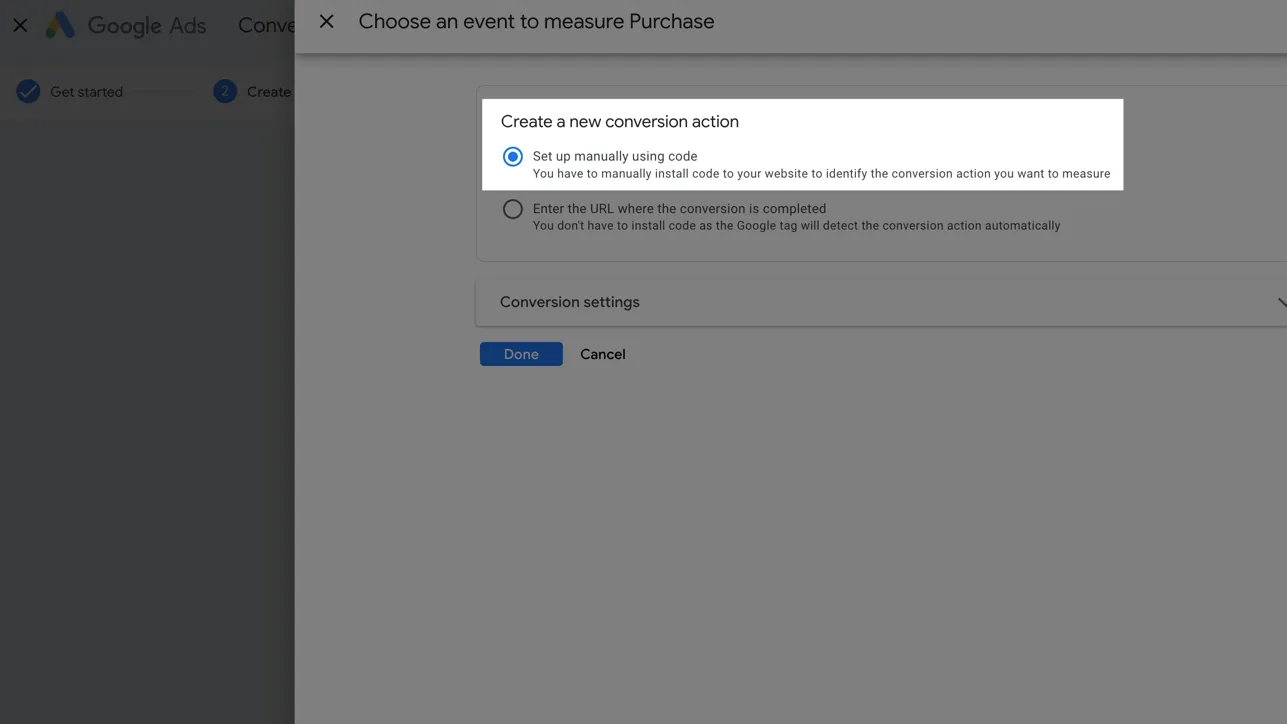
To create a conversion action by hand in Google Ads, follow this guide:
3. Turn On Enhanced Conversions
Section titled “3. Turn On Enhanced Conversions”Enhanced Conversions add hashed customer data to each conversion, so Google matches more conversions to your ads. Turn them on once for the account.
- In Google Ads, open Goals, then Conversions, then Settings.
- Open Enhanced conversions and select Turn on enhanced conversions.
- Agree to the customer data terms.
- As the method, select Google Ads API.
- Click Save.
After AnyTrack sends the first conversions, the Enhanced conversions row shows Managed through Google Ads API. Recording Enhanced Conversions. For the required fields, the match rate, and troubleshooting, see Google Ads Enhanced Conversions.
4. Turn On the Conversion API
Section titled “4. Turn On the Conversion API”- In AnyTrack, open Tracking Pixels and open your Google Ads pixel.
- Under Conversion API, turn on Enable server-to-server tracking. AnyTrack now sends every mapped conversion to Google Ads from its servers, with the customer data that Enhanced Conversions use.
- Click Save.
5. Install the Google Ads Tracking Template
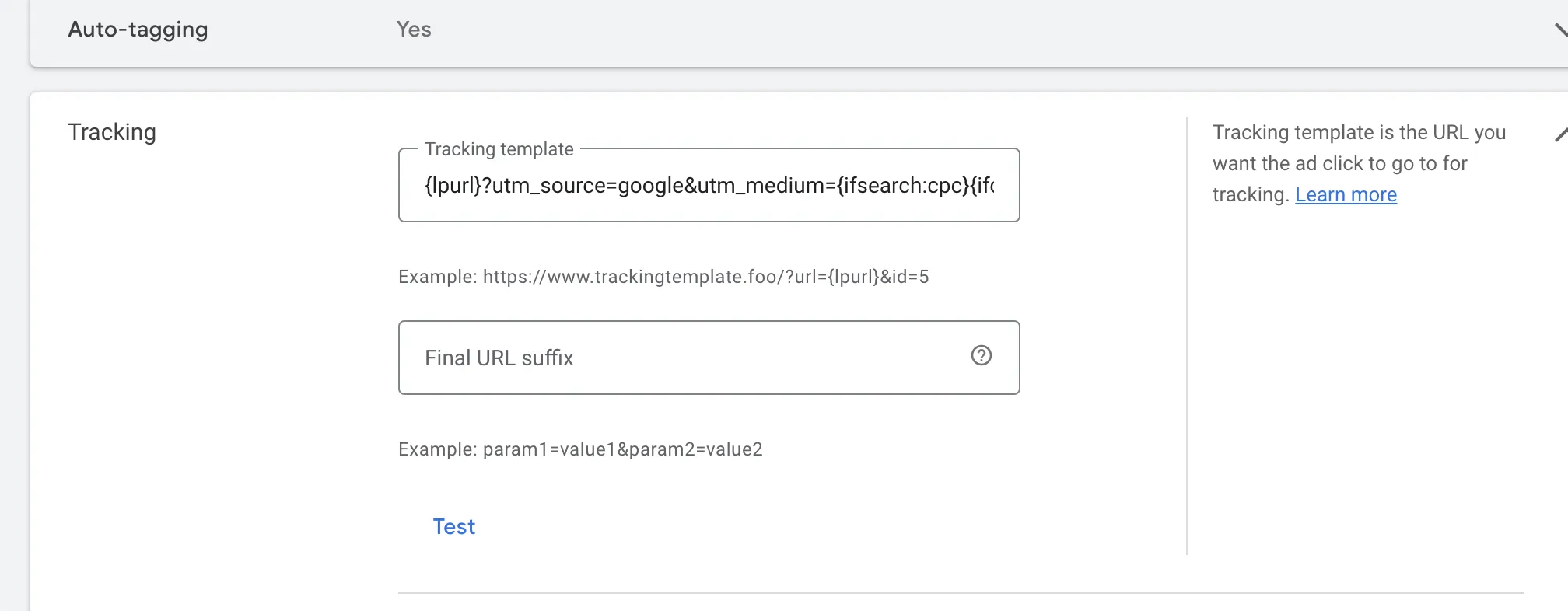
Section titled “5. Install the Google Ads Tracking Template”The UTM tracking template tells AnyTrack which campaign, ad group, keyword, and ad served each click. Without the template, the Campaign Report still identifies the traffic as Google Ads, because the gclid click ID passes with each click. The traffic and conversions do not align with your campaigns, ad groups, and ads, and those fields show (not set).
- In AnyTrack, open your Google Ads pixel and open the Ads Integration tab.
- Click the UTM Tracking Template to copy it.
- In Google Ads, open Admin, then Account settings.
- Verify that Auto-tagging is set to Yes. Auto-tagging adds
gclidto every click. - Open Tracking and paste the template in the Tracking template field.
- Click Save.
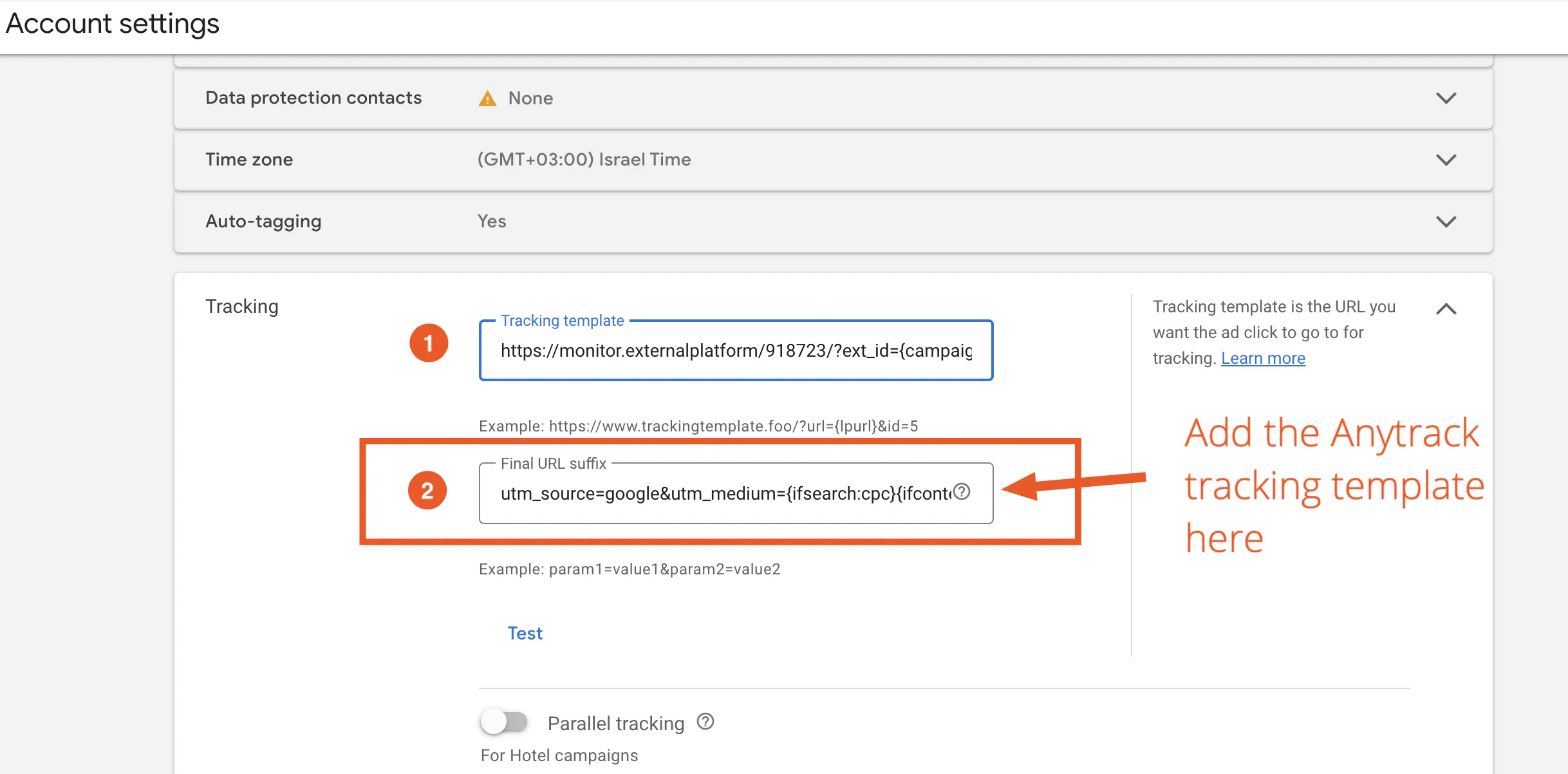
Complete! You now send conversions to Google Ads with AnyTrack. Verify your setup.
Validate Google Ads Setup
Section titled “Validate Google Ads Setup”Verify the integration in Google Ads first, then in AnyTrack.
1. Check the Conversion Action Diagnostics
Section titled “1. Check the Conversion Action Diagnostics”- In Google Ads, open Goals, then Conversions, then Summary.
- Open the conversion action that AnyTrack created and open the Diagnostics tab.
- Verify that the status is Recording conversions.
2. Reconcile AnyTrack and Google Ads Conversion Counts
Section titled “2. Reconcile AnyTrack and Google Ads Conversion Counts”Every conversion AnyTrack tracks is recorded in the source integration’s Events Log with its value and timestamp. Open the log to see which conversions AnyTrack received, then compare them with your Google Ads conversion counts. For delivery status on the Google Ads side, check the conversion action’s Diagnostics tab.
3. Read Your Google Ads Results in the Campaign Report
Section titled “3. Read Your Google Ads Results in the Campaign Report”Open the Campaign Report and select your Google Ads campaigns. AnyTrack imports the campaign, ad group, and ad structure with Amount Spent, Impressions, and Clicks, and merges them with the conversions it tracked. Each row shows the campaign, ad group, and ad name, with cost, conversions, revenue, and ROAS.
Campaign metrics import every hour, not in real time. See Attribution Delays.
Google Ads Integration - Frequently Asked Questions
FAQ was last reviewed on 2026-10-05
Do I need to create the conversion actions in Google Ads by hand?
Which Enhanced Conversions method do I select in Google Ads?
What are attributed conversions in the AnyTrack Campaign Reports?
A goal is account-default but the action is secondary. What shows in the Conversions column?
Why are conversions not showing in Google Ads?
How do I troubleshoot my conversions?
Why am I seeing too many conversions in my Google Ads account?
I'm expecting to track leads but AnyTrack is tracking purchases. Why?
Which conversion settings do I use in Google Ads?
Why don't I see my conversion actions in the Event Mapping section?
Why don't I see all my campaigns in the Campaign Report?
How long does Google Ads take to show conversion data?
Required fields, match rate, and troubleshooting for Enhanced Conversions.
Primary and secondary actions, account-default goals, and Attributed Results.